Welcome to Avante
Your luxury travel business-in-a-box — here's exactly how the affiliate program works
Everything you need to launch a highly profitable travel business is completely built and ready for you from day one. There's no inventory to buy, no website to build, and no corporate red tape.
🔗 Your Personalized Booking Platform
You get immediate access to your own unique, high-tech Avante Agent Portal. Any client who clicks your link is automatically tracked to your profile, so you get credited for every booking they make across Avante's entire live inventory.
📣 Ready-to-Use High-Converting Ads
No marketing experience? No problem. You get Done-For-You Campaign Assets — professionally designed Canva templates, pre-written social captions, and copy-and-paste WhatsApp scripts proven to turn casual inquiries into confirmed bookings.
🔒 Bulletproof Payment & Booking Infrastructure
You focus on the introduction; we handle the machinery. Avante provides a fully integrated secure payment gateway, manages the live reservation system, secures the dates, and issues the guest's official check-in vouchers.
📸 Direct Access to the Creative Stock Vault
Want to build custom campaigns? You get full access to our Media Asset Vault — high-resolution resort photography, drone footage, and promo videos — paired with your Link Builder tool to create links tailored to your audience.
💰 Industry-Leading 15% Commission
One of the most lucrative payout structures in the travel industry. You earn up to 15% commission on your total booking volume — and because these are high-ticket luxury getaways, a single booking can mean thousands of Rands in profit.
🛡️ Monthly Zero-Risk Financial Structure
A true partnership — Avante absorbs the operational risk so you can focus on scaling your audience. Your upfront cost: R0. No sign-up fees, no software subscriptions, no hidden capital requirements.
The Payout Math (Resets Monthly)
The 15% commission on your first R1,967 of sales each month covers platform hosting. From R1,967 to R10,000 you keep the full 15% fee-free. Between R10,000 and R50,000, a standard 2.5% transaction fee applies. Above R50,000 in a single month, fees cap completely.
| Monthly sales volume | Gross commission (15%) | Avante cost / fees | Comms earned (net) |
|---|---|---|---|
| R1,967 (Monthly setup) | R295.05 | R295.05 | R0.00 |
| R10,000 (Initial goal) | R1,500.00 | R295.05 | R1,204.95 |
| R20,000 | R3,000.00 | R545.05 | R2,454.95 |
| R30,000 | R4,500.00 | R795.05 | R3,704.95 |
| R40,000 | R6,000.00 | R1,045.05 | R4,954.95 |
| R50,000 (Fee cap hit!) | R7,500.00 | R1,295.05 | R6,204.95 |
| R70,000 | R10,500.00 | R1,295.05 | R9,204.95 |
| R100,000 | R15,000.00 | R1,295.05 | R13,704.95 |
🎁 The Onboarding Sweetener: The 10% Cash Blueprint
You don't need massive corporate funnels or paid advertising to build an empire — just the natural traffic already on your phone.
Earn with Avante
What you earn and what you get, in a few slides. Share it with anyone you invite to join.
My Dashboard
Your booking activity and where you currently stand on the leaderboard
Affiliate Marketing
Paste your own booking link and landing page link for each promo, then copy them out to use in your ads
Accommodation Link Builder
No login required — build a shareable booking link for social media, in seconds
Resort Info Link
Send clients straight to one specific resort's info page — photos, description, and details — with no dates and no availability check involved.
Explore Map
Properties and local activities, by Country, Province, Region, City and Suburb. Select a place to see what is around it, then click a pin for photos, details and how to book.
Build Your Package
Package builder links aren't live yet
Links for this section are on their way — check back soon.
Your Activity Link
Activity booking links aren't live yet
We're working on bringing activity and experience bookings into the Hub. Check back soon.
Your Car Rental Link
Your personal car hire link — every booking made through it is tracked back to you
Your Short Links
Every branded go.avantetravel.co.za link you've created, in one place, with click counts
Account Details
Keep your personal and banking details up to date so payouts reach you without delay
Personal Details
Bank Account Details
Avante Site Nr
The Avante site number your accommodation bookings are linked to, set by Avante Travel. Contact Avante Travel if this needs to change.
Revenue Share
Your commission rate per booking category, set by Avante Travel. This can't be edited here — contact Avante Travel if you'd like to discuss your commission structure.
Tutorials
Step-by-step guides to help you get the most out of the Hub.
The Hub How-To Guide
Every screen and every button, one small step at a time — always up to date. Each screen also has a ❓ How to button at the top.
Open the How-To Guide Property affiliate guide Hook builder guide
How to Build a Great Link
Turn your personal booking link into something clients actually want to click — in under a minute.
Start with the right tool
Use Accommodation Link Builder for stays, or the ready-made "Your Car Link" tab for car hire. Your own Avante Travel search page is already filled in here — nothing to paste.

Point it at something specific
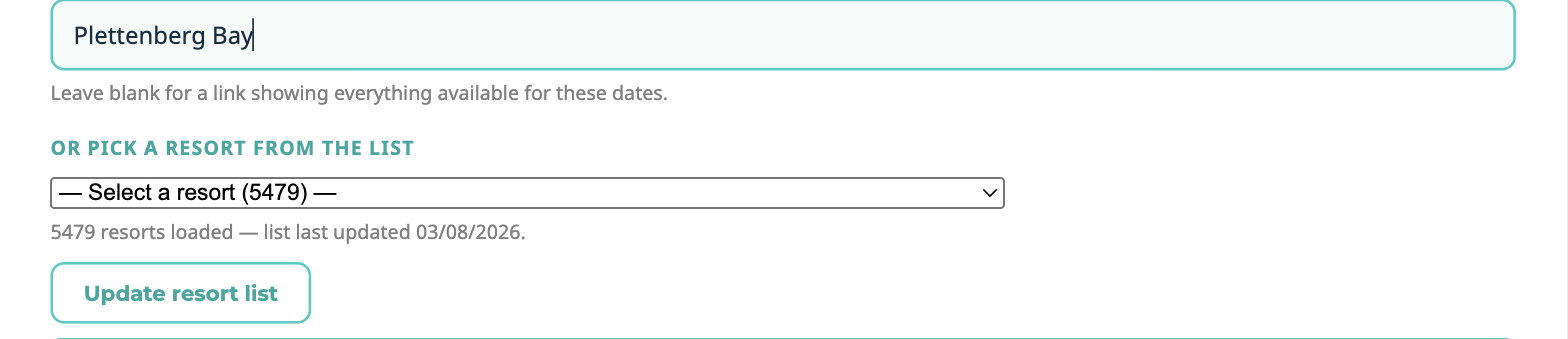
Don't send clients to a generic homepage — type a destination, or pick the exact resort from the dropdown. A link that already shows the place they're excited about converts far better than one that makes them start searching from scratch.
Set your dates and generate
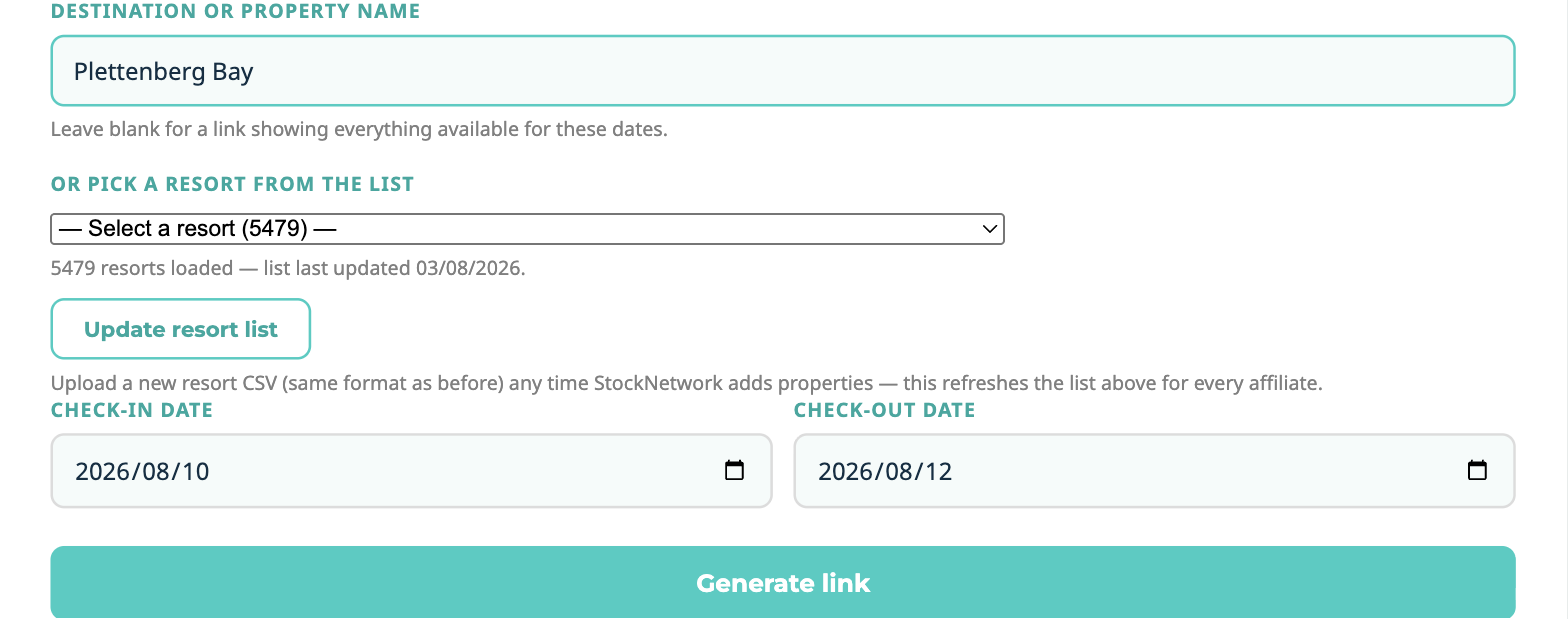
Add check-in and check-out dates if you have them, then click Generate link. This builds your personal, trackable booking link — every booking made through it is automatically credited to you.
Shorten it before you share it
Long booking links look messy in a caption or bio. Click Shorten to turn it into a clean go.avantetravel.co.za link — still fully tracked back to you, just easier to read, type, and trust.
How to Add Your Storefront Ad
Your storefront (the "Your Affiliate Storefront" link on the Home tab) shows up to 6 promo cards — each one is called a hook. Here's exactly how to set one up, and how to decide who keeps it fresh.
What a hook actually is
Each hook is one promo card: an image, a booking link, and (optionally) a landing page link. All 6 hooks together make up your storefront grid — the page you share with clients so they can browse your current deals in one place. A hook with nothing filled in just doesn't show, so you're never stuck with empty cards.
Open Affiliate Marketing
From the Hub menu, click Affiliate Marketing. Scroll past your storefront and embed links and you'll see 6 numbered hook cards — Hook 1 through Hook 6. Pick any empty one (or an existing one you want to update).
Add your booking link
Paste the booking link for whatever you're promoting — a specific resort, a package deal, anything with an Avante Travel booking link. This is required. We automatically tag it with your affiliate ID so every booking made from this card is credited to you.
Add a landing page link (optional)
If you've got a page with more detail on the deal — a blog post, a resort info page, anything — paste it here. It shows as a "See full details" button alongside "Book Now" on the card. Leave it blank if the booking link is all you need.
Upload the ad image
Click Upload image and choose a photo for the card — a shot of the resort, the destination, anything that sells the deal at a glance. Use a portrait-orientation image (taller than it is wide) so it fills the card properly. JPG, PNG, GIF or WebP, up to 4MB.
Save it
Click Save hook. You'll immediately see your booking link, landing link (if you added one), and a new client link — a single, shareable URL for just this one offer. That client link is what you send in a DM, WhatsApp message, or add to a bio when you want to promote one deal on its own, separate from your full storefront.
Decide who manages this hook
Underneath the Save button is Who manages this hook? with two options:
Manage my own — this hook stays exactly as you set it up, until you change it yourself.
Let admin manage — this hook automatically shows whatever ad Avante Travel's admin has set as the current default for that hook slot. This is the default setting for every hook, so if you never touch this toggle, it's already switched on.
You can set this individually for each hook — for example, keep Hook 1 as your own promo for a resort you love and fix it at the top of your front store, while the others stay on "Let admin manage" and update automatically whenever admin refreshes them. Your front store shows 6 hooks at a time (1 big, 2 medium, 3 small) and the rest take turns every few seconds. Untick Show on my front store on any hook you don't want shown.
What happens when your dates pass
If you built your booking link with the Accommodation Link Builder and gave it check-in dates, a self-managed hook automatically switches over to the admin's default content once that check-in date arrives — so you never end up promoting an offer for dates that have already passed. You'll see a note under the toggle confirming this ("Your selected dates have passed, so this hook is automatically showing the admin's default content"). To promote a new date range yourself again, just update the hook with fresh dates and it switches back to your own content.
Best Platforms to Share Your Links
Not all platforms convert the same way. Here's what tends to work best for travel links, and why.
💬 WhatsApp Status & Broadcast Lists
The highest-trust channel you have. A short Status update or a message to a broadcast list of past clients gets seen and clicked because it's coming from a real person they already know, not a stranger's feed.
See How📸 Instagram & Facebook Reels/Stories
Best for reach. A short video of the resort with your shortened link in the caption or "link in bio" works well — pair it with the Done-For-You Canva templates and captions from your Home tab.
See How🎵 TikTok
Great for discovery beyond your existing followers. Keep it short and visual — the destination itself is the hook, your link is just the next step.
See How👥 Facebook Groups & Marketplace
Useful for reaching people already actively planning trips (travel groups, local community groups). Always check a group's rules before posting a link — some restrict promotional posts.
See HowBest if you're reaching business travellers, corporate accounts, or past professional contacts (MICE, conferences, incentive trips). Links work directly in a LinkedIn post — no "link in bio" workaround needed.
See How💬 Step-by-step: Sharing on WhatsApp Status & Broadcast Lists
Every tap, from building the link to sending it — using The Dunes (a specific resort in Plettenberg Bay) and Plettenberg Bay (a whole area) as examples. No experience needed.
Decide: one resort, or a whole area?
Promoting a specific property you have photos or a video of? Link straight to it — clients trust what they can already see. Not sure which resort someone wants, or just showcasing a destination in general? Link to the whole area instead, so they can browse everything available for those dates.
Build the link in Accommodation Link Builder
In the Hub, click the Accommodation Link Builder tab. Both examples below use the exact same form — the only difference is what you type into one field.
Example: The Dunes
- Click into Destination or property name and type The Dunes, Plettenberg Bay. (If it happens to already be in Or pick a resort from the list, selecting it there does the same thing automatically.)
- Click into Check-in date and Check-out date and pick your dates, e.g. 12–19 Dec.
- Click the big Generate link button.
Example: Plettenberg Bay
- Click into Destination or property name and type only Plettenberg Bay — no specific resort name. Leave the dropdown below it on — Select a resort —.
- Set the same Check-in / Check-out dates.
- Click Generate link — this link shows everything available in Plett for those dates, so clients can browse and pick.
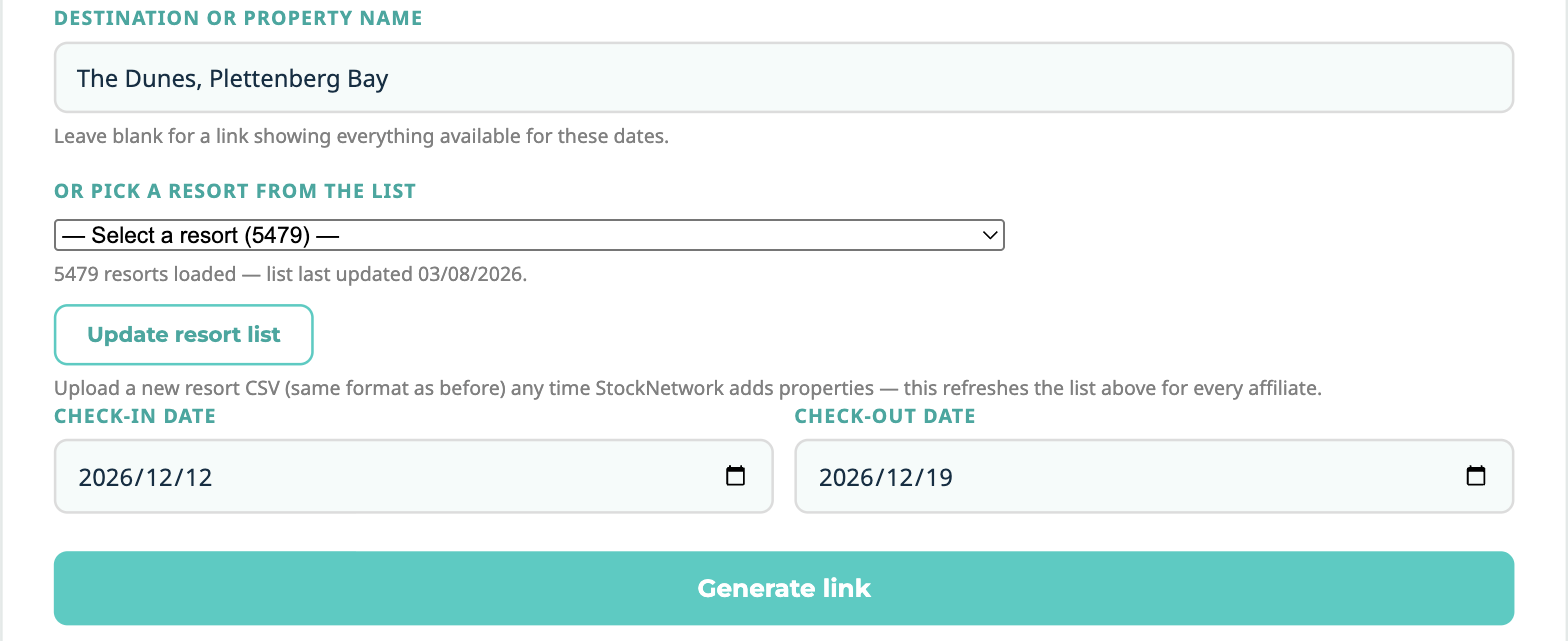

After you click Generate link, a green/teal box appears underneath showing Your shareable link. It'll look long and messy — that's normal. Click the Shorten button next to it to turn it into a short, clean link.

Post it to your WhatsApp Status
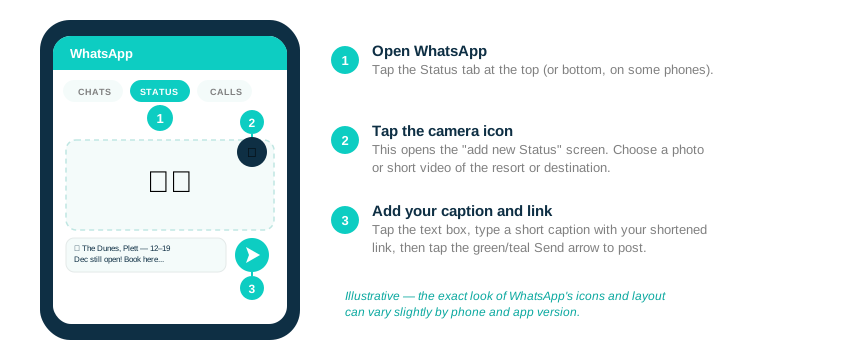
- Open the WhatsApp app on your phone.
- Tap the Status tab (sometimes labelled "Updates") — it's one of the tabs along the top or bottom of the screen, next to Chats and Calls.
- Tap the round camera or pencil icon, usually in the bottom-right corner, to start a new update.
- Choose a photo or short video from your phone — a photo of the resort or destination works well. If you've made one, use the Done-For-You Canva templates on your Home tab.
- Tap the text box that appears over the photo, and type a short caption that includes your shortened link (copy it from the Hub, then paste it into WhatsApp).
- Tap the green or teal Send arrow to post. Your contacts will see it for the next 24 hours.
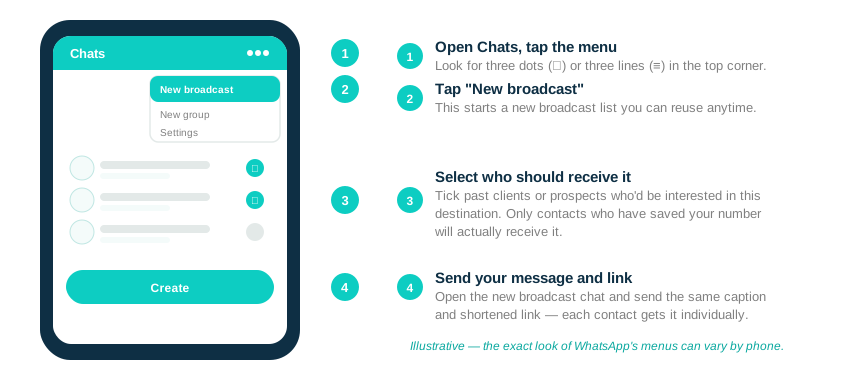
Send it to a Broadcast List
- In WhatsApp, go to the Chats tab.
- Tap the menu icon in the top corner — three dots (⋮) or three lines (≡), depending on your phone.
- Tap New broadcast.
- Tick the past clients or prospects who'd be interested in this destination, then confirm.
- In the new broadcast chat that opens, type the same caption and shortened link you used for your Status, then tap Send.
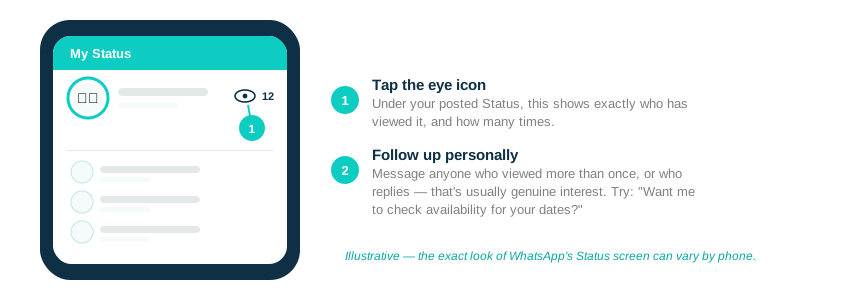
Follow up
Under your posted Status, tap the small eye icon to see exactly who has viewed it, and how many times. Message anyone who viewed more than once, or who replies — that's usually genuine interest. A quick "Want me to check availability for your dates?" is often all it takes to turn a view into a booking.
📸 Step-by-step: Sharing on Instagram & Facebook Reels/Stories
Same link-building steps as WhatsApp, then how to actually get a tappable link in front of people — using The Dunes and Plettenberg Bay again as examples.
Build the link in Accommodation Link Builder
Same tool, same two examples as the WhatsApp section above:
Example: The Dunes
- Type The Dunes, Plettenberg Bay into Destination or property name.
- Set your Check-in / Check-out dates.
- Click Generate link, then Shorten.
Example: Plettenberg Bay
- Type only Plettenberg Bay — no specific resort name.
- Set the same dates.
- Click Generate link, then Shorten.
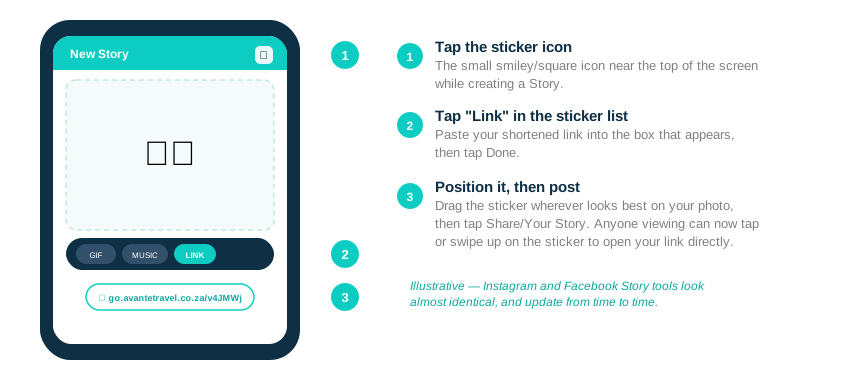
Add it as a Story link sticker (best for a time-limited promo)
- Take a photo or short video of the resort or destination, or use a Done-For-You Canva template from your Home tab.
- Open Instagram or Facebook and start a new Story with that photo or video.
- Tap the sticker icon near the top of the screen.
- Tap Link, paste your shortened link into the box that appears, then tap Done.
- Drag the sticker to wherever looks best on your photo, then tap Share to Story. Anyone viewing your Story can now tap the sticker to go straight to your link.
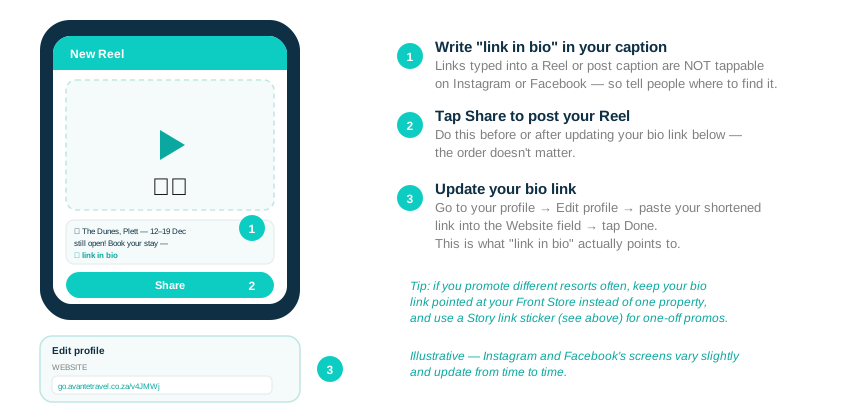
Post a Reel with "link in bio" (best for reach)
- Record or upload a short video — the destination itself is the hook, so keep it visual rather than text-heavy.
- Write a caption that says what it is and ends with "link in bio", since the link itself won't be tappable here.
- Tap Share to post your Reel.
- Go to your profile, tap Edit profile, and paste your shortened link into the Website field, then tap Done — this is what "link in bio" actually points to.
Follow up
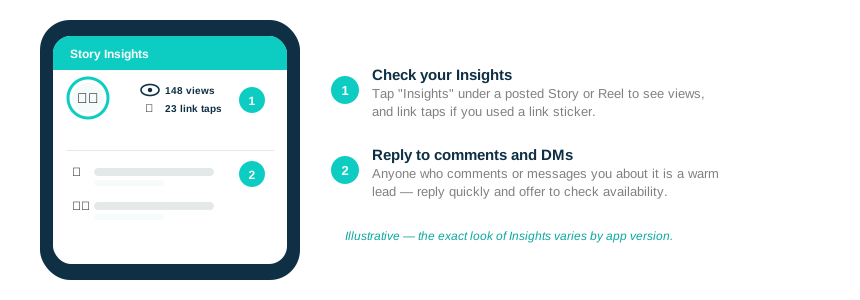
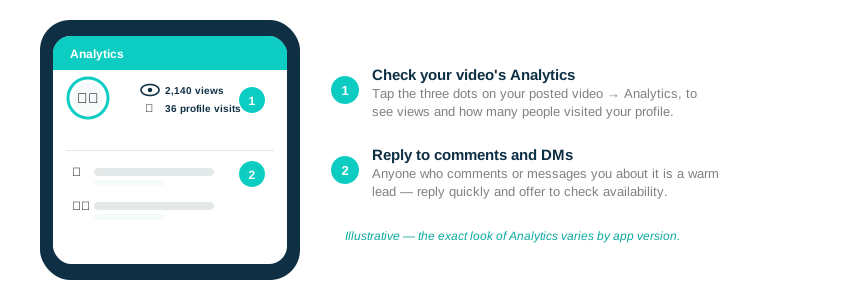
Tap Insights under your posted Story or Reel to see views, and link taps if you used a link sticker. Reply to anyone who comments or messages you about it — that's a warm lead, not a stranger, so treat it that way.
🎵 Step-by-step: Sharing on TikTok
Same link-building steps again, then how TikTok's caption and bio link work — using The Dunes and Plettenberg Bay as examples.
Build the link in Accommodation Link Builder
Same tool, same two examples as before:
Example: The Dunes
- Type The Dunes, Plettenberg Bay into Destination or property name.
- Set your Check-in / Check-out dates.
- Click Generate link, then Shorten.
Example: Plettenberg Bay
- Type only Plettenberg Bay — no specific resort name.
- Set the same dates.
- Click Generate link, then Shorten.
Post your video and update your bio link
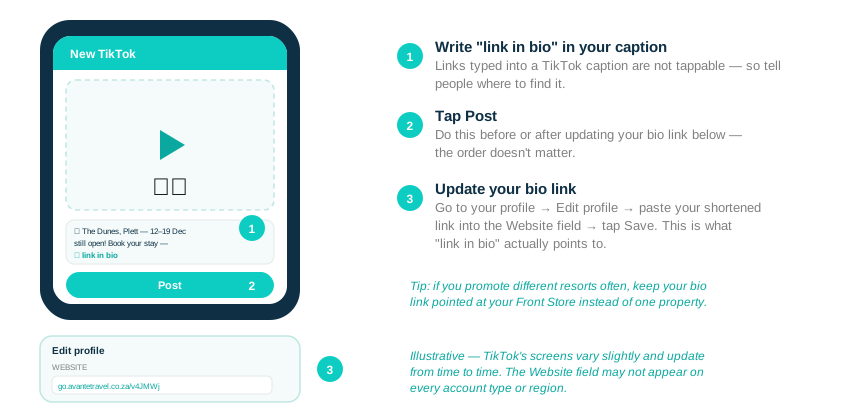
- Record or upload a short video — the destination itself is the hook, so keep it visual.
- Write a caption that says what it is and ends with "link in bio", since the link itself won't be tappable in the caption.
- Tap Post.
- Go to your profile, tap Edit profile, and paste your shortened link into the Website field, then tap Save — this is what "link in bio" actually points to.
Follow up
Tap the three dots on your posted video, then Analytics, to see views and profile visits. Reply to anyone who comments or messages you about it — that's a warm lead, not a stranger, so treat it that way.
👥 Step-by-step: Sharing on Facebook Groups & Marketplace
Same link-building steps again, then how to post it where people are already planning trips — using The Dunes and Plettenberg Bay as examples.
Build the link in Accommodation Link Builder
Same tool, same two examples as before:
Example: The Dunes
- Type The Dunes, Plettenberg Bay into Destination or property name.
- Set your Check-in / Check-out dates.
- Click Generate link, then Shorten.
Example: Plettenberg Bay
- Type only Plettenberg Bay — no specific resort name.
- Set the same dates.
- Click Generate link, then Shorten.
Post it in a relevant Facebook Group
- Find a Group your ideal clients are already in — local community groups, travel-deal groups, or groups for the destination itself.
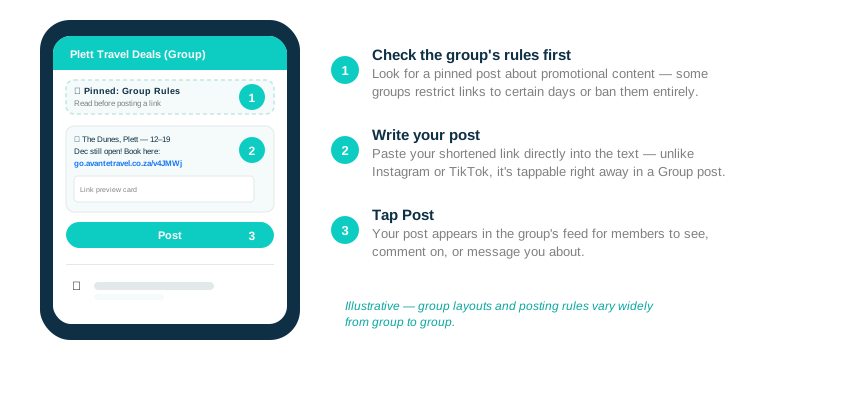
- Open the Group and check for a pinned post about the rules — some restrict links to certain days, require a specific format, or don't allow them at all.
- Tap to write a post, and type your caption including your shortened link directly in the text.
- Tap Post.
Optional: list it on Marketplace
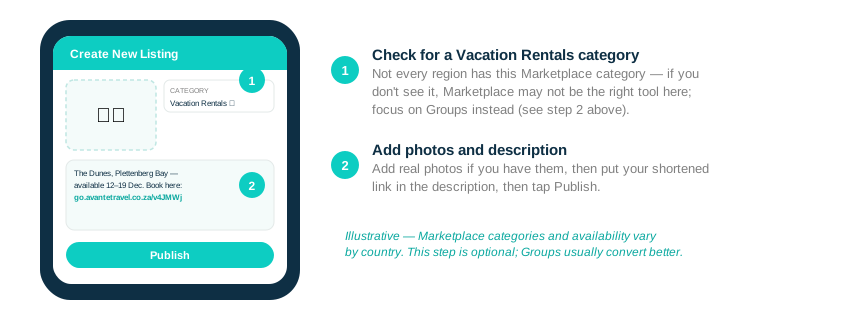
Facebook Marketplace has a Vacation Rentals category in some regions, but not everywhere — check whether it's available to you before relying on it. If it is, you can create a listing with photos, a description, and your shortened link. If it isn't, Groups (step 2 above) is usually the better and more reliable channel anyway.
Follow up
Reply to comments on your post, and check your Messenger for anyone who's messaged you directly about it — both are warm leads. A quick "Want me to check availability for your dates?" is often all it takes.
💼 Step-by-step: Sharing on LinkedIn
Same link-building steps again, then how to reach business travellers and corporate contacts — using The Dunes and Plettenberg Bay as examples.
Build the link in Accommodation Link Builder
Same tool, same two examples as before:
Example: The Dunes
- Type The Dunes, Plettenberg Bay into Destination or property name.
- Set your Check-in / Check-out dates.
- Click Generate link, then Shorten.
Example: Plettenberg Bay
- Type only Plettenberg Bay — no specific resort name.
- Set the same dates.
- Click Generate link, then Shorten.
Share it as a LinkedIn post
- Tap Start a post on your LinkedIn home screen or profile.
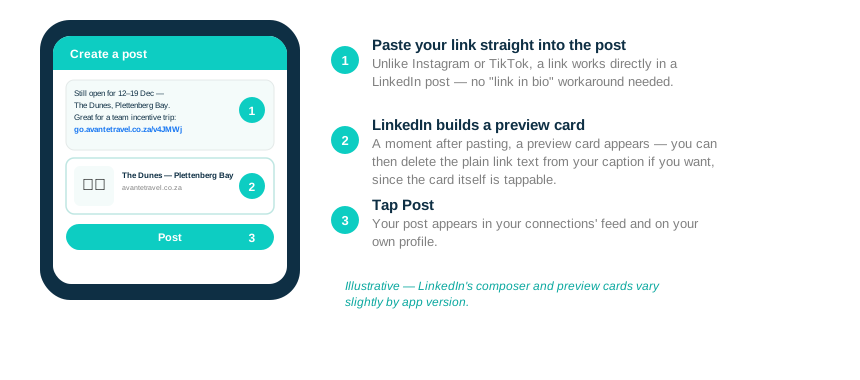
- Write your caption, and paste your shortened link directly into the text — it works right away, no "link in bio" needed.
- Give LinkedIn a moment to generate an automatic preview card for the link.
- Tap Post.
Follow up
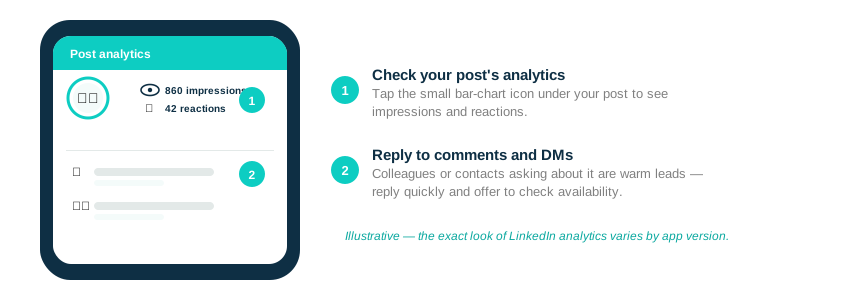
Check your post's analytics (tap the small chart icon under it) to see impressions and reactions. Reply to comments and check your messages — a colleague or contact asking about it is a warm lead, especially for group or corporate bookings.